
Unlock the Power of Self-Hosting
Stop Paying for cPanel: Build Your Own Pro Hosting Platform with HestiaCP
The Problem vs. The Dream
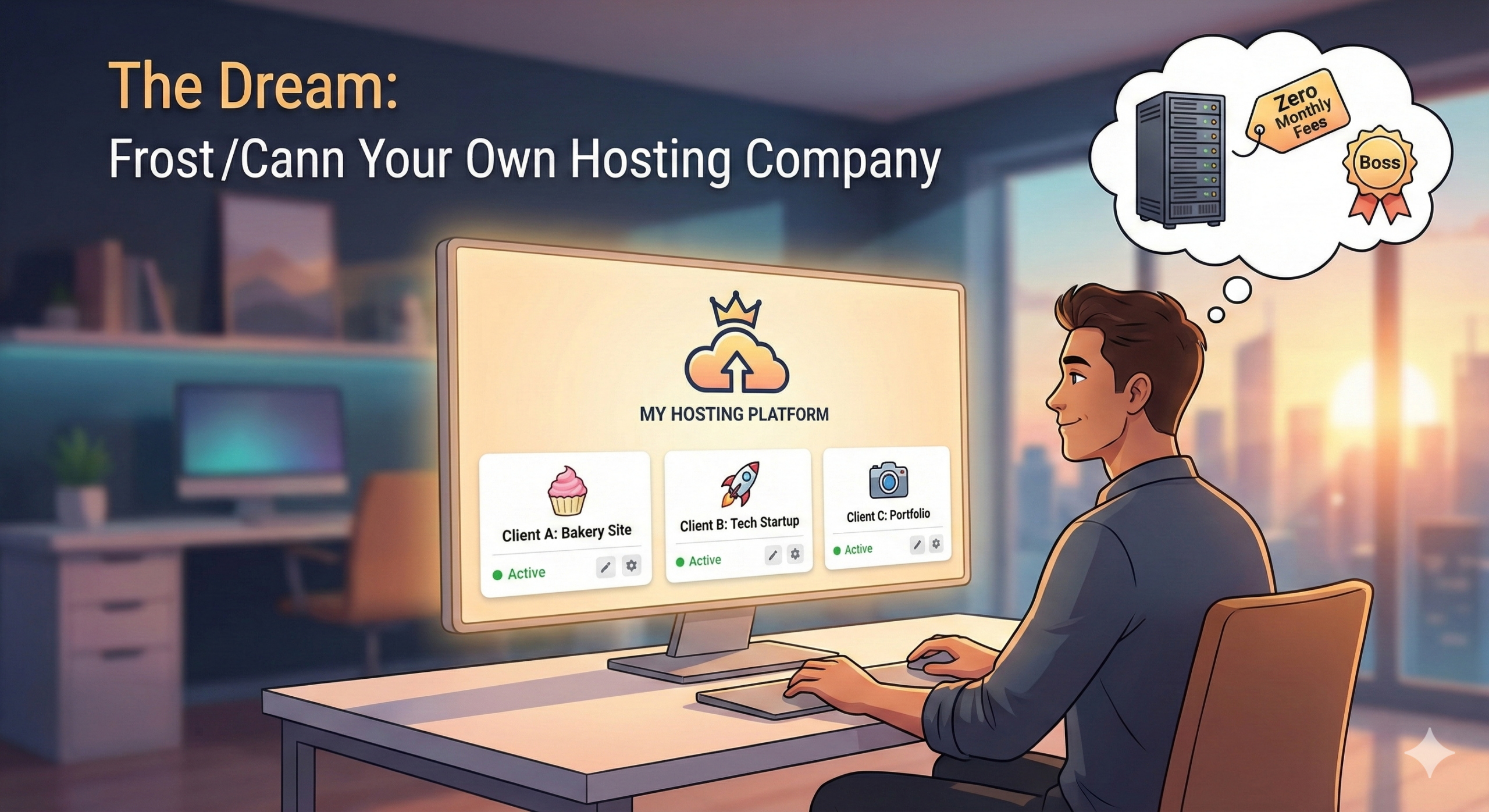
The Dream: Your Own Hosting Company
The Problem: If you are a freelance web designer or a developer juggling multiple client sites, you know the pain. Paying expensive monthly fees for reseller hosting, dealing with clunky interfaces, or worse—trying to manage twenty different DigitalOcean droplets—is exhausting.
You want a single dashboard. You want to easily create isolated accounts for your clients so they can manage their own WordPress sites and emails. And you want it for free.
The Solution: Enter HestiaCP
HestiaCP is a beautiful, lightweight, and completely open-source alternative to bulky software like cPanel or Plesk. It turns a raw Linux server into a professional hosting platform where you are the boss.
Today, we’re going to build your new hosting empire in about 20 minutes. Let’s go.
🛒 The Shopping List (Prerequisites)
Before we dive in, you need just two things. Total cost can be under $5/month.
A Fresh VPS (Virtual Private Server): You need a clean slate. Do not try this on a server that already has websites on it.
-
OS Recommendation: Ubuntu 22.04 LTS or Debian 11/12.
-
Specs: At least 1 CPU and 2GB RAM recommended for smooth sailing.
panel.yourawesomeagency.com.
Step 1: Point Your Domain DNS

-
Type: A
-
Host/Name:
panel(or whatever subdomain you want to use) -
Value/Target: Your VPS IP Address (e.g.,
123.45.67.89)
(Wait a few minutes for this change to propagate across the internet before moving on.)
Step 2: Connect to Your Server via SSH
On Windows: Use PowerShell or a free tool like PuTTY.
Run this command (replace with your actual server IP):
ssh root@123.45.67.89
ssh [username]@123.45.67.89
root@yourserver:~# or [username]@yourserver:~$.Step 3: The Magic Install Command 🪄
apt-get update && apt-get upgrade -y
wget https://raw.githubusercontent.com/hestiacp/hestiacp/release/install/hst.sh
bash hst.sh --force
--force flag just ensures it runs smoothly on a fresh OS without nagging you about minor pre-checks.
Step 4: The 10-Minute Coffee Break ☕
The installation script will now ask you a few simple questions.
-
-
It will show you a list of software it's going to install. Type "y" and press Enter to confirm.
-
Please enter admin email address: Enter your actual email address (for alerts).
-
Please enter FQDN hostname: Enter the domain record you created in Step 1 (e.g.,
panel.yourawesomeagency.com).
-
Now, wait.
The installer will download and configure everything. This usually takes between 5 and 15 minutes depending on your server speed. Go grab a coffee.
Step 5: The Big Reveal
⚠️ CRITICAL STEP: TAKE A SCREENSHOT NOW ⚠️
It will display your Admin URL, your admin username, and a randomly generated password. You need these to log in.
(Placeholder for Image: A screenshot of the final HestiaCP terminal output showing credentials)
Go to the URL provided (e.g., https://panel.yourawesomeagency.com:8083). Your browser will likely warn you that the connection isn't "private" yet because the SSL certificate hasn't generated. It's safe to click "Advanced" and "Proceed anyway."
Log in with the credentials from your terminal screen. Welcome home!
(Placeholder for Image: A clean screenshot of the HestiaCP main dashboard showing the 'admin' user)
1. A reliable VPS provider with at least 1GB RAM
2. A domain name registered and pointed to your VPS
3. SSH access to your VPS for installation
4. Ubuntu 20.04 LTS as the operating system
5. Basic knowledge of terminal commands
6. An active internet connection
7. Optional: SSL certificate for secure connections
8. Backup solution for data safety
9. Email account setup for notifications
10. Firewall configuration for security
11. Sufficient disk space for your websites
12. A static IP address for your VPS
13. Access to DNS management tools
14. Time to dedicate to the setup process
15. Willingness to learn and adapt
16. Support resources or community forums
17. Patience for troubleshooting
18. Enthusiasm for self-hosting adventures
Making it "Multi-Tenant" (Hosting Your Clients)
1. Create a Hosting "Package"
Think of this as the plan you are selling.
-
In HestiaCP, click the Packages menu at the top.
-
Click Add Package.
-
Give it a name like "Client-Starter".
-
Set limits! Maybe 1 Web Domain, 5GB Disk Space, 2 Databases.
-
Click Save.
2. Create a Client User
Now, let's onboard your first customer.
-
Click the Users menu.
-
Click Add User.
-
Fill in their username, a secure password, and their email.
-
Crucial: In the "Package" dropdown, select the "Client-Starter" package you just built.
-
Click Save.
Conclusion
You just took a raw $5 VPS and turned it into a professional hosting platform. You are no longer reliant on expensive corporate hosts. You own the infrastructure, and you control the experience for your clients.
Now, go fill that server up with awesome websites!